

 Multiple Faces Detected


 November 9th, 2023
Our smartphones have become central to our daily lives, offering an array of applications that make tasks more convenient and enjoyable. From social networking to navigation and productivity tools, these apps can be incredibly useful. However, they also come with a catch – they often request access to various aspects of our device, including sensitive information like our location and personal data. To maintain control over our digital privacy, it’s essential to understand and manage app permissions and location services effectively. In this blog post, we’ll explore how to take charge of what apps can access on your smartphone and protect your personal information.
Understanding App Permissions
Understanding app permissions is a crucial aspect of managing your smartphone’s security and privacy. These permissions dictate what capabilities and data an app can access on your device. When you install an app, it typically requests specific permissions to function properly. It’s essential to know what these permissions entail and to evaluate whether the app’s requests align with its intended purpose.
Permissions typically fall into categories such as access to your camera, microphone, location, contacts, photos, and more. While some permissions are vital for an app’s core functionality, others may raise concerns if they seem excessive or unrelated to the app’s purpose. For instance, a flashlight app asking for access to your contacts might be a red flag. It’s essential to scrutinize these permissions and make informed decisions about whether to grant them or not.
Apps generally request permissions to enhance user experience, provide relevant features, and sometimes to deliver personalized content. For example, a mapping app requires access to your location to provide directions accurately. While this can be beneficial, it’s essential to strike a balance between functionality and privacy. Overly permissive apps may access and collect more data than necessary, potentially compromising your personal information.
To view and manage app permissions, go to your device’s settings. From there, you can see which permissions are granted to each app and choose to enable or disable them individually. It’s important to regularly review and adjust app permissions to ensure that your data and privacy are safeguarded.
Location Services: Friend or Foe?
Location services on your smartphone can be both a valuable friend and a potential foe. These services allow apps to determine your geographical location, enabling features like GPS navigation, location-based recommendations, and real-time weather updates. However, the convenience of location services comes with privacy and security considerations.
On the friendlier side, location services can significantly enhance your daily life. GPS navigation apps, for example, rely on your device’s GPS receiver to provide turn-by-turn directions, helping you navigate unfamiliar areas with ease. Location-based services offer tailored information, such as nearby restaurants, events, and businesses, making your smartphone a useful tool for exploring your surroundings and discovering new places.
Social apps and dating services often use location data to connect you with people nearby who share your interests. This can be an excellent way to meet new friends or find potential romantic partners. Weather apps can provide accurate, location-specific forecasts, while ride-sharing services use your location to send drivers to your exact pickup spot.
However, the same location services that enhance your daily life can also pose risks. When you grant location access to apps, you’re sharing sensitive information about your whereabouts. This data can be misused or exploited by malicious actors, compromising your privacy and security.
To navigate the complex landscape of location services, it’s essential to be selective and cautious. You should carefully evaluate which apps have access to your location data and regularly review and adjust these permissions. Additionally, being aware of the potential risks and benefits of location services will help you make informed decisions about when and how to use them.
Controlling App Permissions on Android
Managing app permissions on an Android device is a fundamental aspect of maintaining your privacy and security. Android offers granular control over what permissions each app can access. Here’s how to control app permissions on Android:
- Accessing Permissions Settings:
- Go to your device’s “Settings” app.
- Scroll down and select “Apps” or “Apps & Notifications,” depending on your Android version.
- You’ll see a list of all the installed apps on your device. Select the app for which you want to manage permissions.
- Reviewing Permissions:
- Once you’ve selected the app, scroll down to the “Permissions” section within the app settings.
- You’ll see a list of different types of permissions, such as location, camera, microphone, contacts, and more.
- Tap on each permission to see which apps have access to that specific feature.
- Adjusting Permissions:
- To change a permission, simply toggle the switch on or off for the specific app.
- Turning off a permission means the app won’t have access to that feature. For example, turning off the location permission will prevent the app from using your device’s GPS.
- Be cautious when disabling permissions, as some apps may not function correctly without certain permissions.
- Background Location Access:
- Android provides the option to grant location access to apps only when they are in use (foreground) or at all times (background).
- Consider changing the location access to “Only while using the app” for apps that don’t need your location constantly.
- App Settings Reset:
- If you’ve previously denied permissions to an app, and it’s not working as expected, you can reset the app to its default permissions.
- On the app’s settings page, tap “App permissions” or a similar option, then tap “Reset app permissions.”
- Reviewing All App Permissions:
- To see an overview of all app permissions on your Android device, go to “Settings” > “Privacy” > “Permission manager” (or similar, depending on your Android version).
- To see an overview of all app permissions on your Android device, go to “Settings” > “Privacy” > “Permission manager” (or similar, depending on your Android version).
- Regularly Audit Permissions:
Managing App Permissions on iOS
Managing app permissions on an iOS device is essential for maintaining your privacy and controlling what apps can access. Here’s how to manage app permissions on iOS:
- Accessing App Permissions:
- Open the “Settings” app on your iOS device.
- Open the “Settings” app on your iOS device.
- Reviewing App Permissions:
- Scroll down and find the list of installed apps on your device.
- Tap on the app for which you want to manage permissions.
- Adjusting Permissions:
- Within the app’s settings, you’ll see a list of permissions, such as “Camera,” “Microphone,” “Location,” and others.
- Tap on each permission to review which apps have access to that specific feature.
- Changing Permissions:
- To change a permission, toggle the switch next to the app’s name.
- Turning off a permission means the app won’t have access to that feature. For example, disabling the location permission will prevent the app from accessing your device’s GPS.
- Background Location Access:
- iOS provides options for location access, similar to Android. Apps can request location access “Never,” “While Using the App,” or “Always.”
- Consider changing the location access to “While Using the App” for apps that don’t need your location at all times.
- Privacy Settings:
- In the “Settings” app, you’ll also find a dedicated “Privacy” section. Here, you can access various privacy settings, including location services, contacts, photos, and more.
- In the “Settings” app, you’ll also find a dedicated “Privacy” section. Here, you can access various privacy settings, including location services, contacts, photos, and more.
- Background App Refresh:
- Some apps may use background app refresh to update content even when you’re not using the app. You can control which apps are allowed to refresh in the “Settings” app under “General” and “Background App Refresh.”
- Some apps may use background app refresh to update content even when you’re not using the app. You can control which apps are allowed to refresh in the “Settings” app under “General” and “Background App Refresh.”
- Siri and Search:
- In the “Settings” app, you can control which apps are allowed to interact with Siri and the iOS search feature. Consider restricting apps that you don’t want to access these features.
- In the “Settings” app, you can control which apps are allowed to interact with Siri and the iOS search feature. Consider restricting apps that you don’t want to access these features.
- Limit Ad Tracking:>
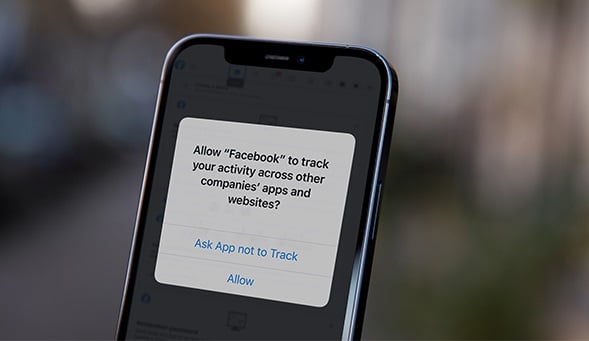
- In the “Privacy” section of the “Settings” app, you can also find “Advertising.” Here, you can enable “Limit Ad Tracking” to restrict targeted advertising based on your app usage.











