

 Multiple Faces Detected


 October 17th, 2023
Our smartphones have become an integral part of our lives, serving as personal assistants, entertainment hubs, and communication devices. With the multitude of apps available, we entrust them with access to a treasure trove of personal information. However, ensuring your data’s privacy and security is paramount. Welcome to our blog post, “Managing App Permissions: Controlling Access to Your Data.” In this guide, we will empower you with the knowledge and tools to take charge of your digital life by understanding and managing app permissions effectively. Let’s explore how you can safeguard your privacy while still enjoying the convenience of your favorite apps.
Understanding App Permissions
mobile apps play a pivotal role in our daily lives. From communication to productivity and entertainment, there’s an app for nearly everything. However, have you ever wondered how these apps access certain features or data on your device? This is where app permissions come into play. App permissions are the gatekeepers that determine what resources, functions, or information an app can use on your smartphone or tablet.
When you install a new app, it often requests specific permissions, such as access to your camera, contacts, location, or microphone. These permissions grant the app the authority to utilize those hardware components or access certain data on your device. Understanding app permissions is essential for safeguarding your privacy and security because granting unnecessary access can expose your personal information to potential risks.
To navigate the world of app permissions effectively, it’s crucial to comprehend how they work, why apps request them, and how to manage them. In this blog post, we’ll delve deeper into the intricacies of app permissions, shedding light on the different types, their significance, and how to make informed choices when granting access to your device’s resources. Let’s embark on a journey to demystify app permissions and empower you to take control of your digital privacy.
The Risks of Unchecked Access
While mobile apps have undoubtedly improved the way we live, they come with a certain level of risk, particularly when it comes to accessing our personal information and device features. Many apps request a variety of permissions that, when granted without scrutiny, can pose serious privacy and security risks. Understanding these risks is paramount in the digital age.
One of the primary concerns of unchecked access is data privacy. When apps request access to your contacts, location, or camera, they may gather sensitive information without your consent. This data can be exploited for various purposes, including targeted advertising, data breaches, or even identity theft. Without proper oversight of app permissions, you may inadvertently expose your personal life to prying eyes.
Another risk is the potential for misuse of device features. Some apps, if granted access to your microphone or camera, can surreptitiously record audio or capture images without your knowledge. This invasion of your privacy can lead to unauthorized surveillance or the recording of sensitive conversations. Moreover, malware-infected apps can exploit unchecked permissions to carry out malicious activities, such as sending premium-rate SMS messages or stealing personal data.
Unchecked access can also impact your device’s performance and battery life. Apps that have unnecessary permissions may run in the background, consuming system resources and draining your battery. This not only hampers your device’s efficiency but can also lead to slower performance and increased data usage.
Lastly, there’s the risk of unintended consequences. Some apps may gain access to permissions that seem unrelated to their primary function. This can lead to unexpected behaviors or even security vulnerabilities that hackers can exploit. To mitigate these risks, it’s essential to be vigilant and selective when granting app permissions and to regularly review and adjust them as needed.
In the next sections of this blog post, we’ll explore the various types of app permissions, why apps request them, and how you can take control of your privacy by managing these permissions effectively.
Managing App Permissions on Android
Android smartphones offer users a high degree of customization and control over their devices, including the management of app permissions. Understanding how to manage these permissions is crucial for safeguarding your privacy and security. In this section, we’ll delve into the steps to manage app permissions on Android effectively.
1. Navigate to App Settings: To begin managing app permissions, open the “Settings” app on your Android device. This app typically resembles a gear or cogwheel icon and can be found in your app drawer or on the home screen.
2. Select “Apps & Notifications”: Within the “Settings” menu, scroll down and tap on “Apps & Notifications.” This section allows you to manage various aspects of your apps, including permissions.
3. Choose an App: From the list of installed apps, select the app for which you want to manage permissions. Tapping on an app will open its details page.
4. Access App Permissions: On the app’s details page, tap on “Permissions.” Here, you’ll see a list of the different permissions the app can request, such as “Camera,” “Location,” “Microphone,” and more.
5. Review and Adjust Permissions: In this section, you’ll find a list of the permissions the app currently has access to. These permissions may be categorized as “Allowed,” “Denied,” or “Not set.” Review each permission and decide whether you want to grant, deny, or adjust it.
6. Grant or Deny Permissions: To grant or deny a permission, tap on the specific permission, and you’ll be presented with options like “Allow” or “Deny.” Choose the appropriate option based on your preferences.
7. Adjust Advanced Permissions: For some permissions, you may find an option for advanced settings. This allows you to fine-tune how the app uses a particular permission. For instance, you can grant location access only while using the app, rather than all the time.
8. Repeat for Other Apps: To ensure comprehensive control over your app permissions, repeat these steps for all the apps on your device. It’s a good practice to regularly review and adjust permissions, especially after app updates.
9. Be Cautious: While managing permissions, exercise caution and consider the necessity of each permission for the app’s functionality. Deny permissions that seem unnecessary or intrusive to protect your privacy.
Controlling App Permissions on iOS
Managing app permissions on iOS devices, such as iPhones and iPads, is essential for protecting your privacy and controlling how apps access your personal information. Here’s a step-by-step guide on how to control app permissions on iOS:
- Begin by opening the “Settings” app on your iOS device. This app typically features a gearwheel icon and can be found on your home screen.
- Scroll down the Settings menu and locate the “Apps” or “Privacy” section. The exact location may vary depending on your iOS version.
- In the Apps or Privacy section, you’ll find a list of installed apps on your device. Tap on the specific app for which you want to manage permissions. This will open the app’s settings.
- Within the app’s settings, you’ll see a list of permissions categories, such as “Location,” “Camera,” “Microphone,” and more. Tap on each category to view which permissions the app currently has access to.
- To control app permissions, use the toggle switches next to each permission category. Turning a permission off will deny the app access to that specific feature. For example, you can disable location access if you don’t want the app to use your GPS data.
- Some permissions may have advanced settings that allow you to fine-tune how the app uses them. For instance, you can grant location access only when the app is actively in use, limiting background location tracking.
- After adjusting the app’s permissions to your liking, exit the app settings by tapping the back arrow or using the device’s gesture controls. Your changes will be automatically saved.
- To ensure comprehensive control over your app permissions, repeat these steps for all the apps on your iOS device. It’s a good practice to periodically review and update permissions, especially after app updates.
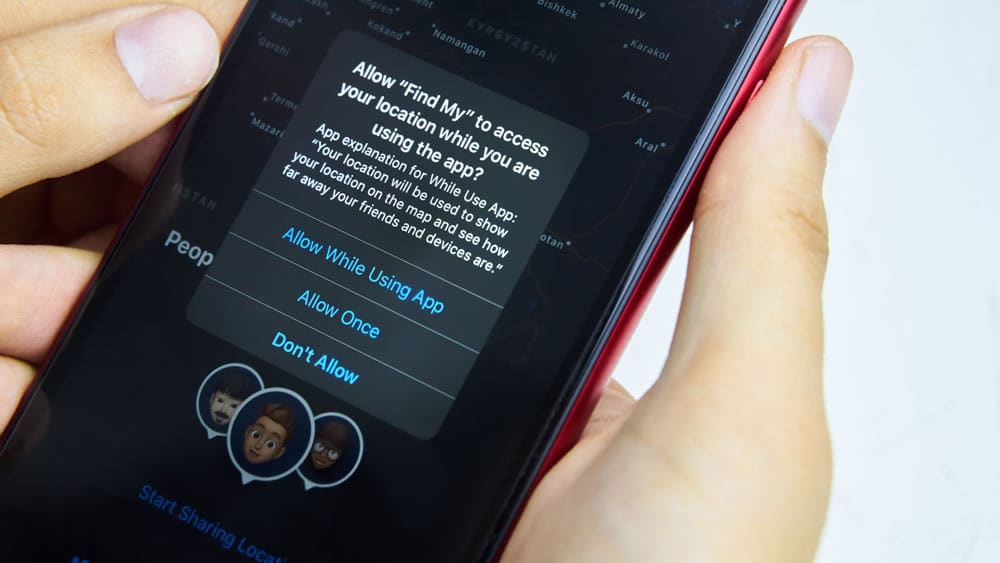
- When using apps, be attentive to permission requests. iOS will prompt you to grant or deny permissions the first time an app attempts to access a specific feature. Make informed decisions based on your privacy preferences.
- To maintain control over your data and privacy, regularly check and adjust app permissions as needed. This helps ensure that only trusted apps have access to your personal information.











