

 Multiple Faces Detected


 January 22nd, 2023
Are you tired of unwanted calls and messages from a specific number? Blocking a phone number on an iPhone is a quick and easy solution to take control of your privacy and peace of mind. In this blog post, we will walk you through the simple steps on how to block a phone number on your iPhone, as well as how to unblock a number if you change your mind. Whether you want to block a number from the Phone app or the Messages app, we’ve got you covered. Keep reading to learn how to block a phone number on an iPhone.
How to Block a Phone Number From The Phone App on an iPhone
Blocking a phone number from the Phone app on an iPhone is a simple process that can be done in just a few steps. Here’s how to do it:
- Open the Phone app on your iPhone.
- Tap on the “Recents” tab at the bottom of the screen to view your recent calls.
- Find the number that you want to block and tap on the “i” icon next to it. This will bring up the contact information for that number.
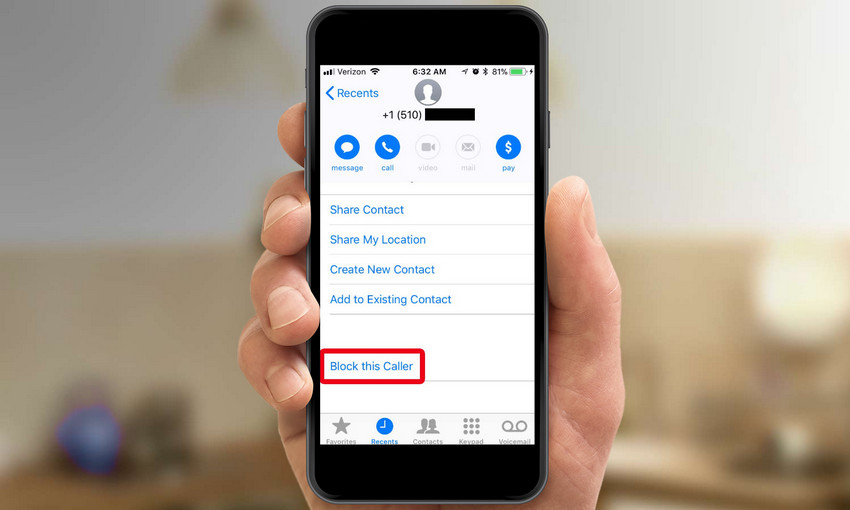
- Scroll down and tap on “Block this Caller.” A pop-up window will appear asking if you are sure you want to block the number.
- Tap on “Block Contact” to confirm. Once you have done this, the number will be blocked and you will no longer receive calls or messages from that person. Additionally, all previous call and message history from that contact will be removed from your device.
It’s important to note that when you block a number from the Phone app, you will also block that number from the Messages app. This means that you won’t receive any text messages or iMessages from that number either.
Additionally, once a number is blocked, you will not receive any calls, messages, or FaceTime requests from that number. Even if you have voicemail enabled, the blocked number will not be able to leave voicemails.
It’s also worth mentioning that you can unblock a number at any time by going to Settings > Phone > Call Blocking & Identification and tapping on the “Edit” button in the top right corner. From there, you can select the number you want to unblock and tap on the “Unblock” button.
Blocking a phone number from the Phone app on an iPhone is a quick and easy process that can be done in just a few steps. With this feature, you can have more control over your privacy and peace of mind, and you can unblock a number whenever you want.
How to Block a Phone Number From The Messages App on an iPhone
Blocking a phone number from the Messages app on an iPhone is also a simple process that can be done in just a few steps. Here’s how to do it:
- Open the Messages app on your iPhone.
- Find the message thread from the number that you want to block.
- Tap on the contact name or number on top of the conversation.
- Scroll down and tap on “Block this Caller.” A pop-up window will appear asking if you are sure you want to block the number.
- Tap on “Block Contact” to confirm. Once you have done this, the number will be blocked and you will no longer receive messages from that person. Additionally, all previous message history from that contact will be removed from your device.
You can also unblock a number at any time by going to Settings > Messages > Blocked Contacts. From there, you can select the number you want to unblock and tap on the “Unblock” button. This is a great way to keep unwanted messages away and have a more organized message history.
How to View and Manage Your Blocked Numbers on an iPhone
Managing your blocked numbers on an iPhone is easy, and you can view and manage your blocked numbers in just a few steps. Here’s how to do it:
- Open the Settings app on your iPhone.
- Scroll down and tap on “Phone” or “Messages” or “FaceTime” (based on which app you blocked the numbers from)
- Tap on “Call Blocking & Identification” or “Blocked Contacts” ( based on which app you blocked the numbers from)
- Here you will see a list of all the numbers you have blocked. You can tap on “Edit” in the top right corner to make changes to your blocked numbers, such as unblocking a number or removing a number from the blocked list.
How to Block Unknown or Private Numbers on an iPhone
Blocking unknown or private numbers on an iPhone is a simple process that can be done by enabling a feature called “Silence Unknown Callers.” Here’s how to do it:
- Open the Settings app on your iPhone.
- Scroll down and tap on “Phone”
- Tap on “Silence Unknown Callers”
- Toggle the switch to enable the feature.
With this feature enabled, only calls from numbers in your contact list will ring your phone, while calls from unknown or private numbers will be silenced and sent directly to voicemail.
This feature only applies to phone calls, not messages or FaceTime calls. To block unknown or private numbers from messages or FaceTime, you will need to use third-party apps or services.
You can also block numbers from your recent calls, open the phone app, tap on the “Recents” tab, find the number you want to block and tap on the “i” icon next to it, scroll down and tap on “block this caller”.
Moreover, if you receive a call from an unknown or private number that you want to block, you can block it directly from the call log. Open the Phone app, tap on the “Recents” tab, find the number you want to block, tap on the “i” icon next to it, scroll down, and tap on “block this Caller”
Blocking unknown or private numbers on an iPhone is easy with the “Silence Unknown Callers” feature. It’s worth noting that this feature only applies to phone calls, and you can block numbers from recent calls, messages or facetime using third-party apps or services. This feature gives you more control over your privacy and peace of mind.
Tips for How to Block a Phone Number on an iPhone to Prevent Unwanted Messages and Calls
There are several ways to prevent unwanted calls and messages on an iPhone:
Block Numbers
You can block numbers by going to the “Recents” tab in the Phone app, tapping the “i” icon next to the number, and selecting “Block this Caller.
Silence Unknown Callers
You can silence calls from unknown numbers by going to “Settings” > “Phone” > “Silence Unknown Callers.”
Use Do Not Disturb
You can use the “Do Not Disturb” feature to silence calls and notifications during specific times or when your device is locked.
Use a Third-Party App
There are several third-party apps available on the App Store that can block unwanted calls and messages, such as Call Blocker and Mr. Number.
Report Unwanted Messages
If you receive unwanted messages, you can report them to your mobile carrier or to the FTC. Use the built-in spam call protection feature, which uses Siri intelligence to automatically silence and send straight to voicemail any call identified as spam.











