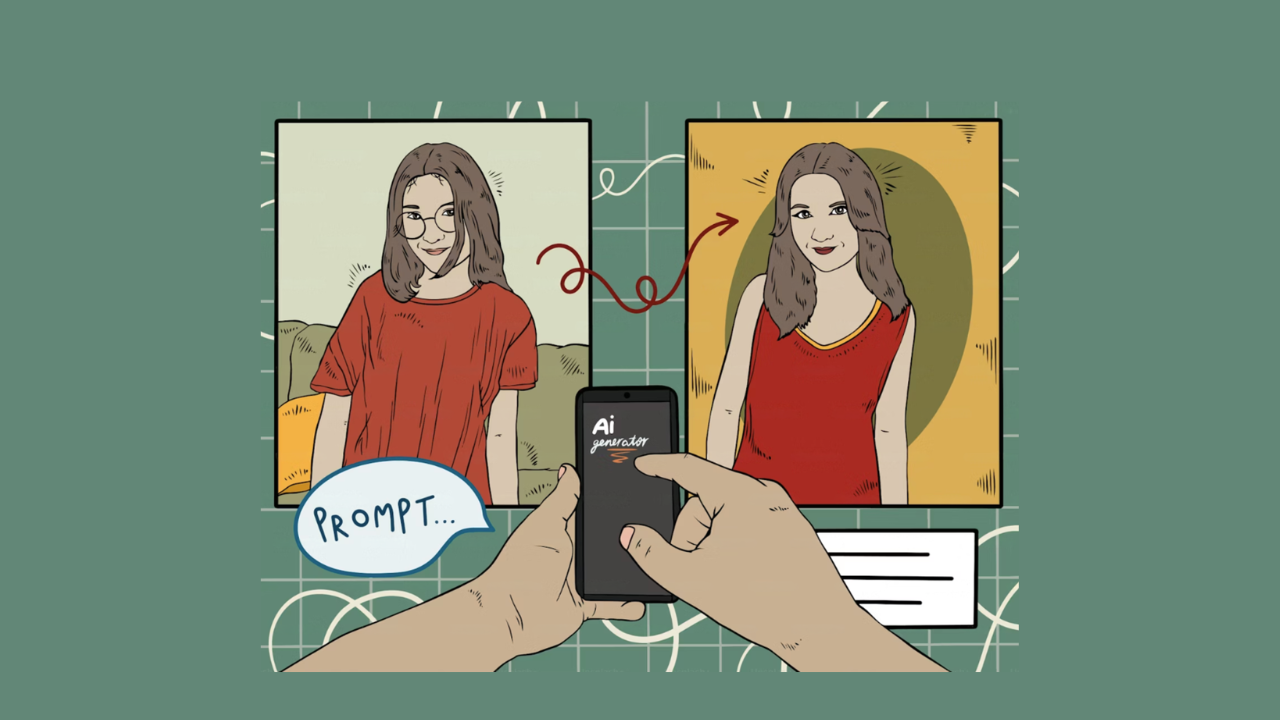

 Multiple Faces Detected



 October 6th, 2023
When it comes to searching the web by picture or image, there are steps you can take to maximize results. One of these is learning how to crop a digital image or photograph on your computer easily or phone. Many times, users upload pictures and don’t find the matches they hope for during a search.
Often, this occurs because they don’t know how to remove erroneous parts of the background. Correctly cropping an image can be fast, fun, and help improve the accuracy of your image search results. This is how to find what you’re looking for in a reverse search.
How to Crop a Picture or Image

Step 1: Know Your Device
Cropping tools vary depending on the type of computer or smart device you’re dealing with.
On your Microsoft computer, screenshot or upload the image and then open it. Select “Tools”, followed by “format” and “crop”. Depending on the program you use to open the photograph, you may want to look for the “edit” key.
When editing an image on a Microsoft computer, you can move the cropping feature to the side, up, or down. If you want to crop the image in the way you’ve selected, opt for “shift” and press “Esc” when you are done.
On an Apple computer, open the image, and you use the cross-shaped navigator shape to crop the image. Or, you can select the pen editing icon, followed by the crop feature on the left side.
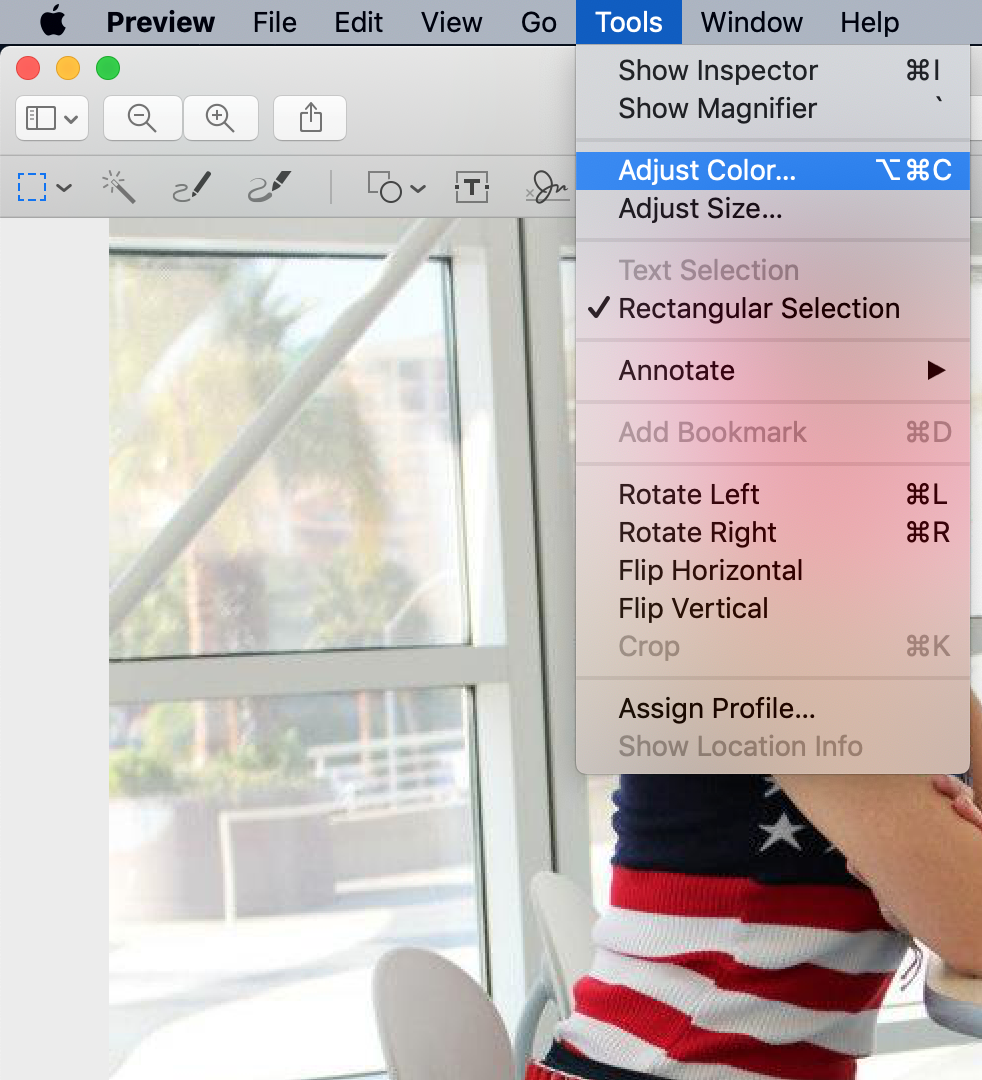
On your smart device or phone, most phone manufacturers allow you to crop images you take or save on your phone by selecting “edit”. If you have a printed copy of an image, take a photograph of it with your camera phone and edit/search that way.
Step 2: Know Your Image
In general, it is best to crop the image based on how you acquired it. If you took a screenshot of a profile picture on someone’s social media platform or dating app, the picture might show the original website or site name.
This addition will make search results unreliable. If you reverse image search using a full photograph, the person you’re searching for may have used the image as their profile photo. Many sites automatically crop the background.
Step 3: When Cropping
- DO – Show the person’s entire face or frame.
- DO – make sure that faces are easy to see in the final crop.
If a few people are close together in the image, leave them all in your search, and remove any excess background images. If you are searching for someone pictured in a large group, try zooming in and searching a smaller part of the image, as long as it doesn’t seriously reduce clarity.

Step 4: Cropped or Un-Cropped?
Save a cropped and un-cropped version of the image and search for both. You never know what will bring you great search results!
Step 5: Remove the Battery Image
Many people forget about their phone’s background, in addition to the image background. This is especially important if you’re searching for a screenshot. Remove the battery life image or icon and any included images of your apps, contact list, etc.
Have you cropped your images and been successful with your search? What have you discovered when you performed a reverse image search, and how did you acquire the original image used indoor search?
Let us know in the comments and find who you’re looking for on Social Catfish today: