
 Multiple Faces Detected



 January 21st, 2026
A reverse image search is an advanced way to search the internet for whatever piece of information you’re looking for. Running a reverse image search can save you a lot of time when it comes to finding something online. In this blog post, we’ll go over how to run a reverse image search from your phone to find whatever you’re looking for.
How to Run a Reverse Image Search From Your Phone
Social Catfish is an advanced search engine that allows you to run a reverse image search from your mobile phone. With socialcatfish.com, running a search is as simple as cropping the photo you want to look for and entering it into the search bar below. This will show where the photo is posted online, along with the people, and things within the photo. Running your first mobile search is easy, simply use the search bar below to run your first search today!
Common Reasons to Use Social Catfish’s Proprietary Search

By the time people come to an algorithm-based reverse image search site like Social Catfish, they’ve been wondering about a reverse image search for a while. Often, they have met someone online who they like and connect with. They could be just getting to know one another, or the relationship has turned romantic, but they keep seeing red flags.
Other times, they might be worried that their significant other is cheating on them and has hidden online profiles! They may have tried basic searches (Google and Bing) with no results or have a gut feeling that they’re being lied to. Whatever your situation online or on an app, our comprehensive algorithm-based search can give you the truth!
Here is How to Reverse Image Search on Mobile (works with both Apple and Android phones)
Go to SocialCatfish.com.

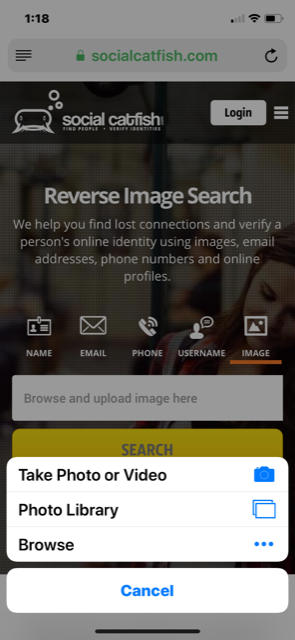
Click on the “Image” icon and wait for the search browser to open.

Click on “Browse and upload images here” and choose from “Take Photo or Video”, “Photo Library, or “Browse”. This will give you the option of taking new photos/videos or choosing from images in your photo library or file folders. If you haven’t taken a picture of the person you’re searching for, take a screenshot from their known social media profiles, bio, or dating site profile.
Before searching (and for better results), crop out any unnecessary words or text from the image. (Instagram, Twitter, Tinder logos, etc.)
As the image uploads, Social Catfish will search through social sites, news sites, public government sites, and more.
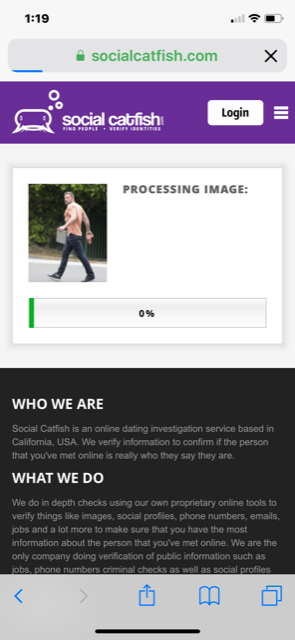
The number of results found for “Exact Matches” and “Other Possible Matches” will be automatically displayed. You can view how many results Social Catfish has found before progressing further on the mobile page.
Sign up for $5.73 for a five-day trial, followed by $27.48 for ongoing signup. Both include unlimited monthly image searches.
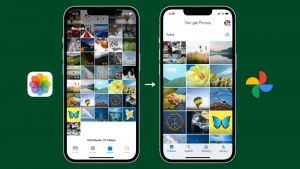
Running a reverse image search from your iPhone or Android gallery
Running a reverse image search from your gallery is no different than uploading an image. The only difference when uploading the image is that you will choose ‘gallery’ as the option when uploading the image.
Running a reverse image search using a screenshot
In order to get the best results when running a reverse image search, you will want to make sure you crop the screenshot and remove anything that is outside of the image. For example, you would remove the top bar that displays the battery and cellular provider in order to get the best results.
User Tip:
Before committing, make use of the five-day trial and upload as many images as possible. This enables you to verify the identity of the person you are communicating with online. Do not fall prey to deceit or fraudulence by someone whom you have placed your trust and confidence in online!
If someone you’re speaking to won’t meet or video chat, they’re giving you the runaround! Or, if you think you’re being cheated on, it’s better to know for sure! Unmask identity, prove fidelity, or make sure that someone is who they say they are. Reverse image searching is one of our most popular searches!