

 Multiple Faces Detected


 October 12th, 2024
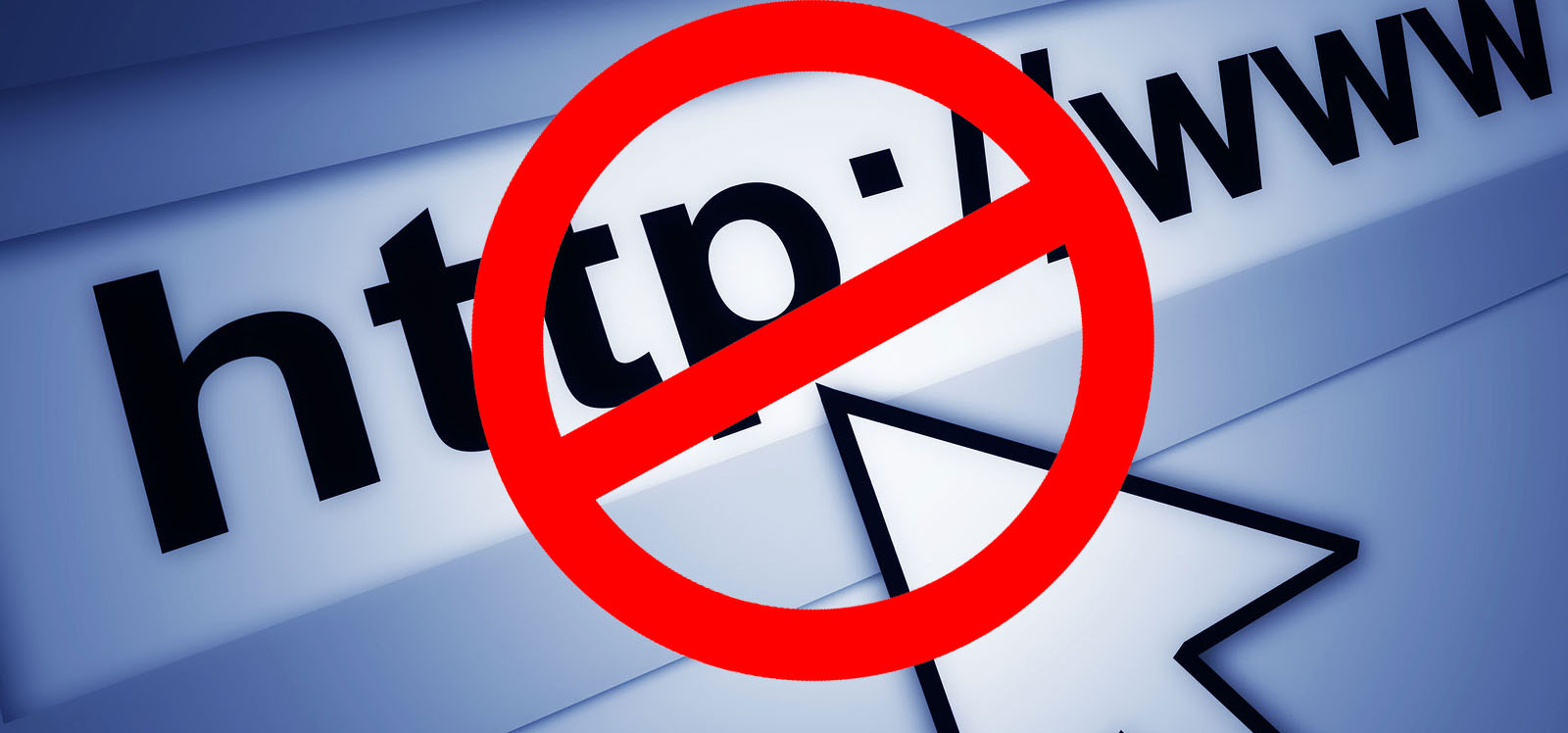
As adults, we often find ourselves spending too much time on certain websites that can be distracting or harmful to our productivity. Whether it’s social media, online shopping, or other time-wasting sites, it’s important to have the ability to block them when necessary. In this comprehensive guide, we will walk you through the steps of how to block a website on your computer or mobile device.
Step 1: Determine the Method of Blocking
Before we dive into the specific steps, it’s important to decide how you want to block the website. There are a few different methods you can choose from:
- Using a browser extension: This method involves installing a browser extension that will block the website for you. This is a quick and easy option, but it only works on the specific browser you have the extension installed on.
- Using parental control software: If you want to block websites for your children or for yourself, you can use parental control software. This will allow you to block specific websites or categories of websites.
- Editing your hosts file: This method involves manually editing your computer’s hosts file to block the website. It’s a bit more technical, but it works on all browsers and devices.
Step 2: Install a Browser Extension (Optional)
If you have decided to use a browser extension, the first step is to find and install the extension on your preferred browser. There are many options available, such as StayFocusd for Google Chrome or LeechBlock for Firefox. Once installed, you can customize the settings to block the specific website you want.
Step 3: Use Parental Control Software (Optional)
If you have decided to use parental control software, you will need to download and install the software on your computer or mobile device. Popular options include Kaspersky Safe Kids, Norton Family, and Qustodio. These programs allow you to set up profiles for different users and block websites as needed.
Step 4: Edit Your Hosts File (Advanced Method)
If you have chosen to edit your hosts file, follow these steps:
- Locate your hosts file. On Windows, it is typically located at C:\Windows\System32\drivers\etc\hosts. On Mac, it is located at /etc/hosts.
- Open the hosts file in a text editor.
- Add the following line at the end of the file:
127.0.0.1 www.example.com(replace “www.example.com” with the website you want to block). - Save the file and close it.
This will redirect any attempts to access the blocked website to your local computer, effectively blocking it.
Step 5: Test the Block
Once you have completed the steps above, it’s important to test the block to ensure it is working properly. Open your browser and try to access the blocked website. If it is blocked, you have successfully completed the process!
Additional Tips
Here are a few additional tips to keep in mind when blocking websites:
- Make sure to choose a strong password for any parental control software or browser extensions to prevent others from disabling the block.
- If you are using a shared computer, it’s important to communicate with others about the blocked websites to avoid confusion.
- Remember to periodically review and update your blocked websites as needed.
With these steps and tips, you now have the knowledge and tools to effectively block any distracting or harmful websites. Use this guide to improve your productivity and focus on what truly matters.
Social Catfish
If you need to block a website due to concerns about its legitimacy or potential harm, Social Catfish can assist in identifying whether the site is linked to fraudulent activity, scams, or impersonation. By using the website’s domain or associated contact information, Social Catfish can track down the true identity of the individuals or organizations behind it. This can help you verify if the website is a fake, a phishing attempt, or an illegitimate business. Knowing this information allows you to make an informed decision about blocking the site from your network or devices. Additionally, Social Catfish can help you uncover if the site has any related social media profiles or other linked accounts, giving you a fuller picture of its online presence before you take action. This way, you can ensure that you’re protecting yourself and others from potential online threats. Click here to contact our search specialist and get started protecting yourself from online threats.











