
 Multiple Faces Detected


 April 9th, 2023
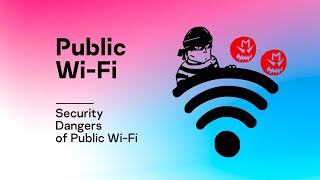
Staying connected to the internet is an essential part of our daily lives. With the proliferation of smartphones, laptops, and tablets, we have constant access to the internet, no matter where we are. However, using public Wi-Fi can expose us to a range of security threats, such as hacking, identity theft, and malware infections. In this blog post, we will explore some best practices and tips for protecting your personal information when using public Wi-Fi. Whether you’re traveling, studying at a coffee shop, or just browsing the web at a public library, these tips will help you stay safe and secure online.
5 Public Wifi Security Risks You Need to Watch Out For
Here are five common public Wi-Fi security risks:
- Man-in-the-Middle (MitM) attacks: These attacks occur when a cybercriminal intercepts the communication between two devices, allowing them to eavesdrop, steal sensitive information, or inject malware.
- Unsecured Networks: Public Wi-Fi networks are often unsecured, which means that hackers can easily gain access to any unencrypted data that you transmit, such as login credentials or personal information.
- Malicious Hotspots: Hackers can set up fake Wi-Fi hotspots with legitimate-sounding names to trick unsuspecting users into connecting. Once connected, the hacker can intercept and steal any data sent over the connection.
- Outdated Software and Firmware: Many public Wi-Fi networks may have outdated software or firmware, making them more susceptible to security breaches.
- Rogue Access Points: Rogue access points are unauthorized wireless access points that can be used to bypass network security protocols, allowing cybercriminals to gain access to sensitive information or launch attacks on the network.
What are Five Ways That you can Protect your Personal Information?
Here are five ways that you can protect your personal information:
- Use a Virtual Private Network (VPN)
- Avoid accessing sensitive information on public Wi-Fi
- Keep your device’s software up to date
- Disable auto-connect features
- Use two-factor authentication
How to Protect Your Personal Information When Using Public Wi-Fi: Use a Virtual Private Network (VPN)
When using public Wi-Fi, one of the most effective ways to protect your personal information is by using a Virtual Private Network (VPN). A VPN is a secure tunnel between your device and the internet. When you connect to a VPN, all your internet traffic is encrypted and routed through the VPN server. This makes it difficult for anyone to intercept or steal your data.
When you connect to public Wi-Fi, your internet traffic is exposed to anyone else using the same network. Hackers can easily intercept your data and steal your personal information, such as your passwords, credit card numbers, and social security number. A VPN encrypts your internet traffic, making it impossible for hackers to intercept your data.
Besides providing security on public Wi-Fi, a VPN has other benefits. For example, a VPN can hide your IP address and location, making it difficult for websites and advertisers to track you. A VPN can also allow you to access content that is restricted in your region, such as streaming services or websites that are blocked in your country.
When choosing a VPN, look for one that has strong encryption, a no-logs policy, and fast speeds. There are many free VPNs available, but they may not be as secure or reliable as paid VPNs. It’s also important to choose a VPN that has servers in the countries you want to access content from.
Most VPNs have an app that you can download and install on your device. Once you’ve installed the app, you can connect to a VPN server with just a few clicks. Some VPNs may require you to create an account and pay for a subscription.
While a VPN can provide excellent security on public Wi-Fi, there are some drawbacks to using a VPN. For example, a VPN can slow down your internet speeds, especially if you’re connecting to a server that is far away. Additionally, some websites and services may block VPN traffic, so you may not be able to access them while connected to a VPN. However, these drawbacks are generally outweighed by the benefits of using a VPN for security and privacy.
How to Protect Your Personal Information When Using Public Wi-Fi: Avoid Accessing Sensitive Information on Public Wi-Fi
When using public Wi-Fi, it’s important to be mindful of the information you access. When you access sensitive information on public Wi-Fi, such as logging into your bank account or entering your credit card information, you run the risk of having that information intercepted by hackers. Public Wi-Fi networks are often unsecured, meaning anyone on the network can access your data.
Any information that could be used to steal your identity or financial information should be avoided on public Wi-Fi. This includes banking information, credit card information, social security numbers, and login credentials for important accounts.
The best way to protect yourself is to avoid accessing sensitive information on public Wi-Fi altogether. If you need to access this information, consider using your phone’s cellular data or waiting until you are on a secure network.
One alternative is to use a personal hotspot on your phone. This creates a secure connection between your device and your phone’s internet connection, so you don’t have to worry about the security risks of public Wi-Fi. Another alternative is to use a Virtual Private Network (VPN), which encrypts your internet traffic and provides an extra layer of security.
Look for the padlock icon in the address bar of your browser. This indicates that the website is using a secure connection, which encrypts your data as it is transmitted. You can also look for “https” in the website’s URL, which indicates that the website is using a secure connection.
If you think your information has been compromised, act quickly to limit the damage. Change your passwords for any accounts that may have been affected and monitor your bank and credit card statements for any suspicious activity. You may also want to consider placing a fraud alert on your credit report to prevent any unauthorized accounts from being opened in your name.
How to Protect Your Personal Information When Using Public Wi-Fi: Keep your Device’s Software Up to Date
Keeping your device’s software up to date is crucial for protecting your personal information when using public Wi-Fi. Software updates often contain security patches that fix vulnerabilities in the operating system or other software on your device. If you don’t install these updates, your device may be vulnerable to attacks from hackers who can exploit these vulnerabilities.
Hackers can use various methods to exploit vulnerabilities in outdated software. For example, they may use malware to infect your device, steal your personal information, or use your device to launch attacks on other computers or networks.
Most devices will notify you when a software update is available. You can also check for updates manually by going to the settings menu on your device and selecting “software update” or “system updates.” Some devices may require you to download updates from the manufacturer’s website.
To install a software update, simply follow the on-screen instructions. Depending on your device, the update may take several minutes to download and install. Make sure your device is connected to a Wi-Fi network and has enough battery life before starting the update.
If your device is no longer receiving software updates, it may be time to consider upgrading to a newer device. Older devices may not be able to run the latest software, leaving them vulnerable to security threats.
In addition to keeping your software up to date, there are other steps you can take to keep your device secure. For example, use a strong password or passcode to lock your device, enable two-factor authentication for important accounts, and avoid downloading apps or files from unknown sources. By taking these steps, you can help protect your personal information and stay safe on public Wi-Fi.
How to Protect Your Personal Information When Using Public Wi-Fi: Disable Auto-Connect Features
Auto-connect features are designed to automatically connect your device to available Wi-Fi networks, which can be convenient but can also put your personal information at risk when using public Wi-Fi. Auto-connect features can automatically connect your device to unsecured Wi-Fi networks without your knowledge or consent. This can put your personal information at risk of interception by hackers, especially if you’re using public Wi-Fi networks.
To disable auto-connect features, go to the settings menu on your device and select “Wi-Fi.” Look for options like “auto-connect” or “auto-join,” and toggle the switch to off. This will prevent your device from automatically connecting to any Wi-Fi network, including unsecured public networks.
Disabling auto-connect features can help protect your personal information and prevent unauthorized access to your device. It can also help conserve your device’s battery life by preventing your device from constantly searching for available Wi-Fi networks.
One alternative is to manually connect to Wi-Fi networks as needed. This gives you more control over which networks you connect to and allows you to verify that the network is secure before connecting. Another alternative is to use a Virtual Private Network (VPN) to encrypt your internet traffic and provide an extra layer of security when using public Wi-Fi.
If you’ve already connected to an unsecured Wi-Fi network, make sure to disconnect immediately and delete the network from your list of saved networks. Consider changing your passwords for any accounts that you accessed while connected to the network, as well as monitoring your bank and credit card statements for any suspicious activity.
In addition to disabling auto-connect features, there are other steps you can take to stay safe on public Wi-Fi. For example, avoid accessing sensitive information, keep your software up to date, and use a strong password or passcode to lock your device. By taking these steps, you can help protect your personal information and stay safe on public Wi-Fi.
How to Protect Your Personal Information When Using Public Wi-Fi: Use Two-Factor Authentication
Using two-factor authentication (2FA) is an effective way to add an extra layer of security to your accounts and protect your personal information when using public Wi-Fi. Two-factor authentication is a security feature that requires users to provide two forms of identification before accessing an account. This can include something you know, like a password or PIN, and something you have, like a fingerprint or a security token.
Two-factor authentication can help prevent unauthorized access to your accounts, even if a hacker has your password. This is because they would also need access to your second form of identification, which is typically something that only you have, like your phone or a physical security key.
To enable two-factor authentication, go to the security settings of the account you want to protect and look for options like “two-step verification” or “multi-factor authentication.” Follow the on-screen instructions to set up the feature and choose a second form of identification, like a phone number or security key.
Common types of two-factor authentication include receiving a code via SMS or email, using an authenticator app to generate codes, or using a physical security key that you insert into your device.
Using two-factor authentication on public Wi-Fi can help protect your accounts from hackers who may be able to intercept your passwords or other sensitive information. Even if a hacker gains access to your password, they would still need your second form of identification to access your account.
In addition to enabling two-factor authentication, there are other steps you can take to make your accounts more secure. For example, use strong and unique passwords for each account, regularly monitor your accounts for suspicious activity, and avoid clicking on links or downloading attachments from unknown sources. By taking these steps, you can help protect your personal information and stay safe on public Wi-Fi.