
 Multiple Faces Detected


 June 24th, 2020
You protect your home on the outside and within. You lock the doors, secure windows, and maybe even install an alarm. However, there is another element of security that some homeowners and apartment dwellers neglect – your home network!
For real safety, you must use up-to-date security measures for the modern age. Scammers and schemers continually look for new and improved ways to hack into private systems and computers. Don’t let your home network be their next victim.
What is a Home Network?
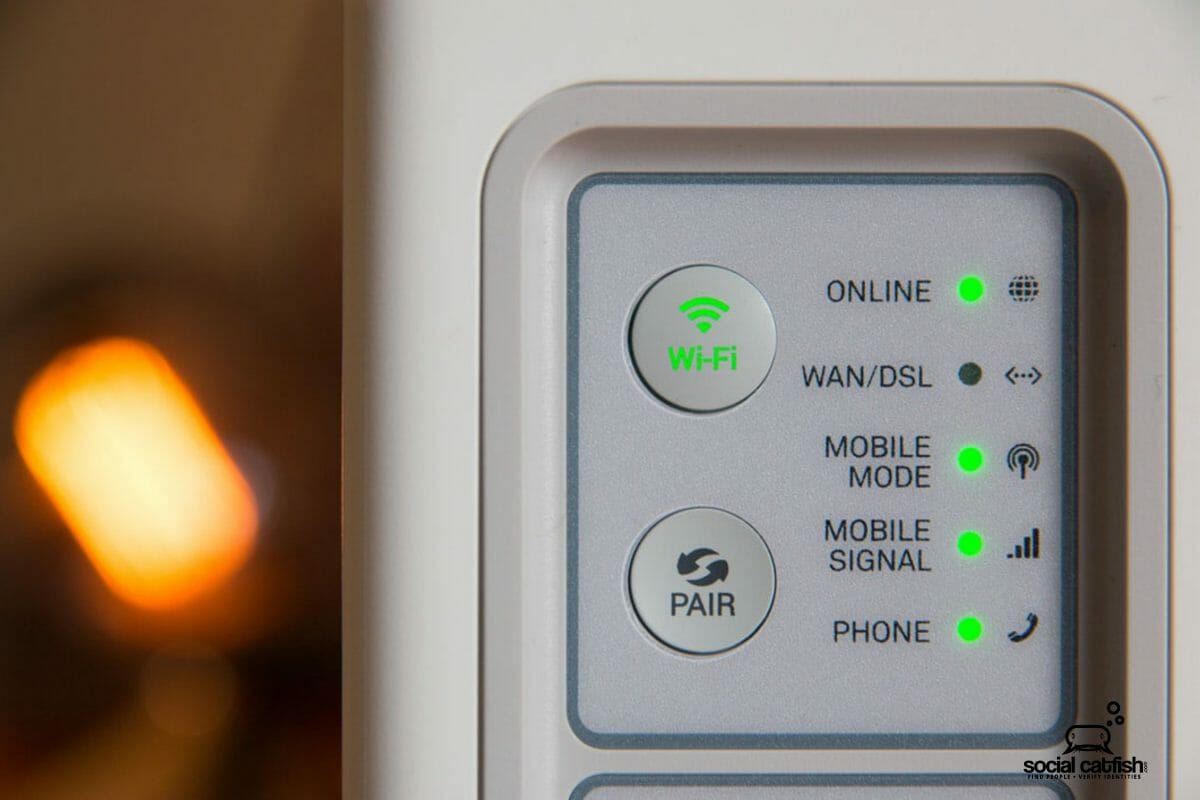
A home network is a way that all your devices (game systems, computers, WiFi connecting smartphones, printers, and other mobile devices) connect through a (wired or wireless) network. A “wireless” network can connect cable-free devices, while a “wired” network can connect items like cable connected scanners or printers.
What Are the Dangers That One Should Be Aware Of?
Criminals can find vulnerabilities in your system and gain access to your network through easy passwords, and this is especially important if you’re a remote worker. From there, they can steal your private information and hack into multiple accounts. Follow each of our steps and learn.
Home Network Security Best Practices
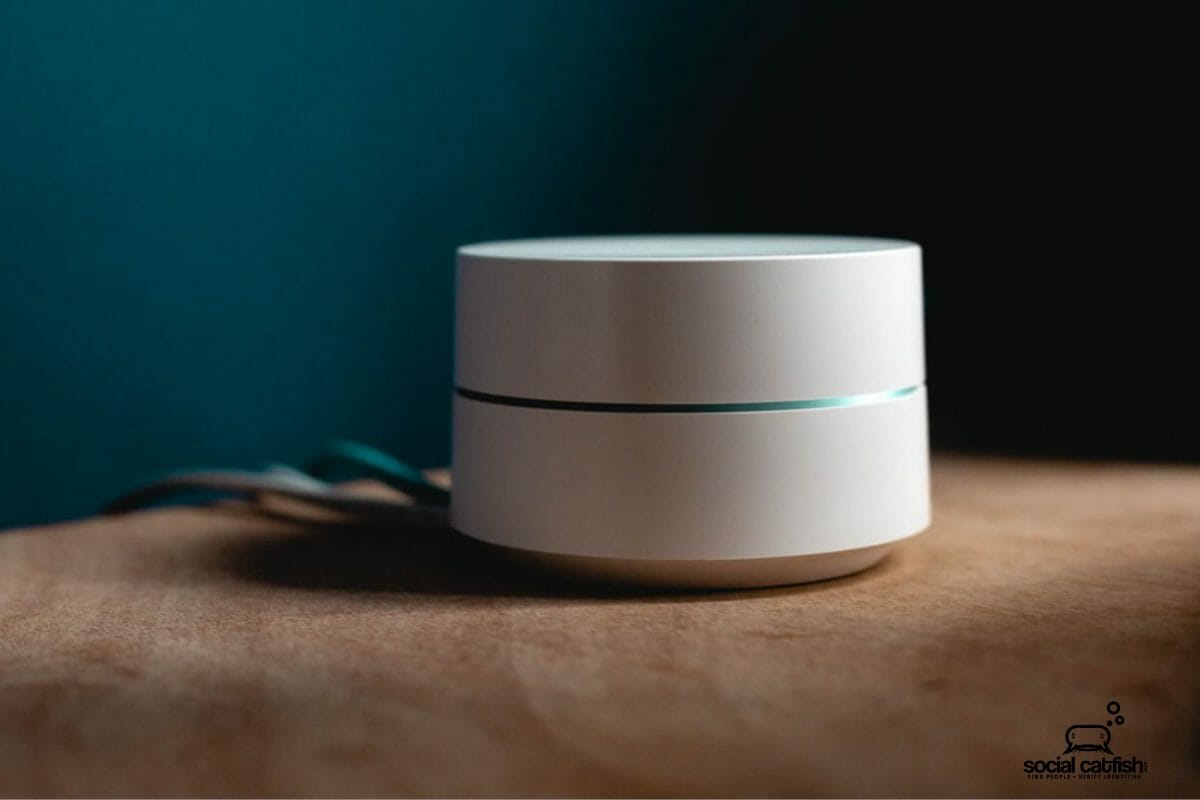
Remove Default Name/Password, etc.
Your WiFi device or SSID (Service Set Identifier Device) should be changed the moment you set it up. While it might seem silly or unimportant that people have so many WiFi names (such as “Our Family WiFi”), it serves an essential purpose.
When you change the default name for your WiFi, hackers won’t be able to figure out which model you have. This will help keep them from hacking in and stealing your information as quickly.
Strong Password
Just like your WiFi name was pre-set to a default name, your device also has a default password. Change that password to one that is complicated and won’t be easily guessed (by a human or a bot). The best passwords use letters, numbers, and characters.
Please keep your password secure, don’t share it with anyone, and try and use a password unique to that device only. That way, even if one password connected account is hacked, your other accounts will be more secure.
Strong Security Questions
Make sure that the answers to your security questions aren’t available anywhere on the web or contain information that others could guess. Example: name of your high school, the street you grew up on, etc. Have you shared the answers to private questions on social media? Make sure you only select security questions that are impossible to guess.
Activate Network Encryption
AES stands for Advanced Encryption Standard, which is the United States’ trusted algorithm and used by the government and multiple organizations. While the abbreviations the multiple encryption languages found under this umbrella are evolving (since cybercriminals are continually coming up with new schemes), some of the most common are WPA, WEP, and WPA2. The terms are more basic when broken down.
For instance, WPA2 stands for WiFi Protected Access 2. Considered an industry-standard, WPA2 is preferable to prior types like WEP (Wired Equivalent Privacy) and has been used for virtually all (WiFi) products since 2006. WPS (WiFi Protected Setup) should be disabled, as vulnerabilities usually exist, which may allow hackers to gain access to your network. This is why your WPA2 and unique passwords are preferable, as they use the wired connection to connect to web-based management interfaces. Your security is enhanced, the less you have multiple services enabled.
Router Location
Placing your router in the center of the house will give those who live next door or pass by on the street, less access. Check that the range for your network doesn’t allow wireless access for those outside your immediate home. Adjust your signal in your router settings to increase or decrease the range.

Disable Remote Access
While most routers require connected devices, some allow remote system access. Turn-off remote access for both your router and computer, to minimize the risk that someone will hack into your device without your knowledge.
This will remove the ability of others to access your devices even when you are not using them. You can typically remove or disable this setting under “Remote Access/ Remote Access Administration”.
DHCP Functionality Turned Off
DHCP stands for Dynamic Host Configuration Protocol. To help keep your network secure, turn off the DHCP so that it doesn’t change IP addresses for each device on your network. A static IP address is better, as it can then be specified in your network settings, which enhances security.
Firewall
A hardware firewall can be installed on your WiFi device or may come with it. It is another added layer of security, which is better than software programs that are solely on your PC.
Update Software
Software updates exist for a reason – they may be because the manufacturer found vulnerabilities or was hacked. Whatever the case, updates to the software are free and will protect your system and allow it to operate smoothly. Regularly updating your software is good, but allowing for automatic updates may be better as it will keep your system functioning as securely as possible.
While the risk will always be there, securing your home network in the ways described above will keep your information safe for years to come. As cybercriminals evolve and methods or vulnerabilities in technology change, new methods arise.
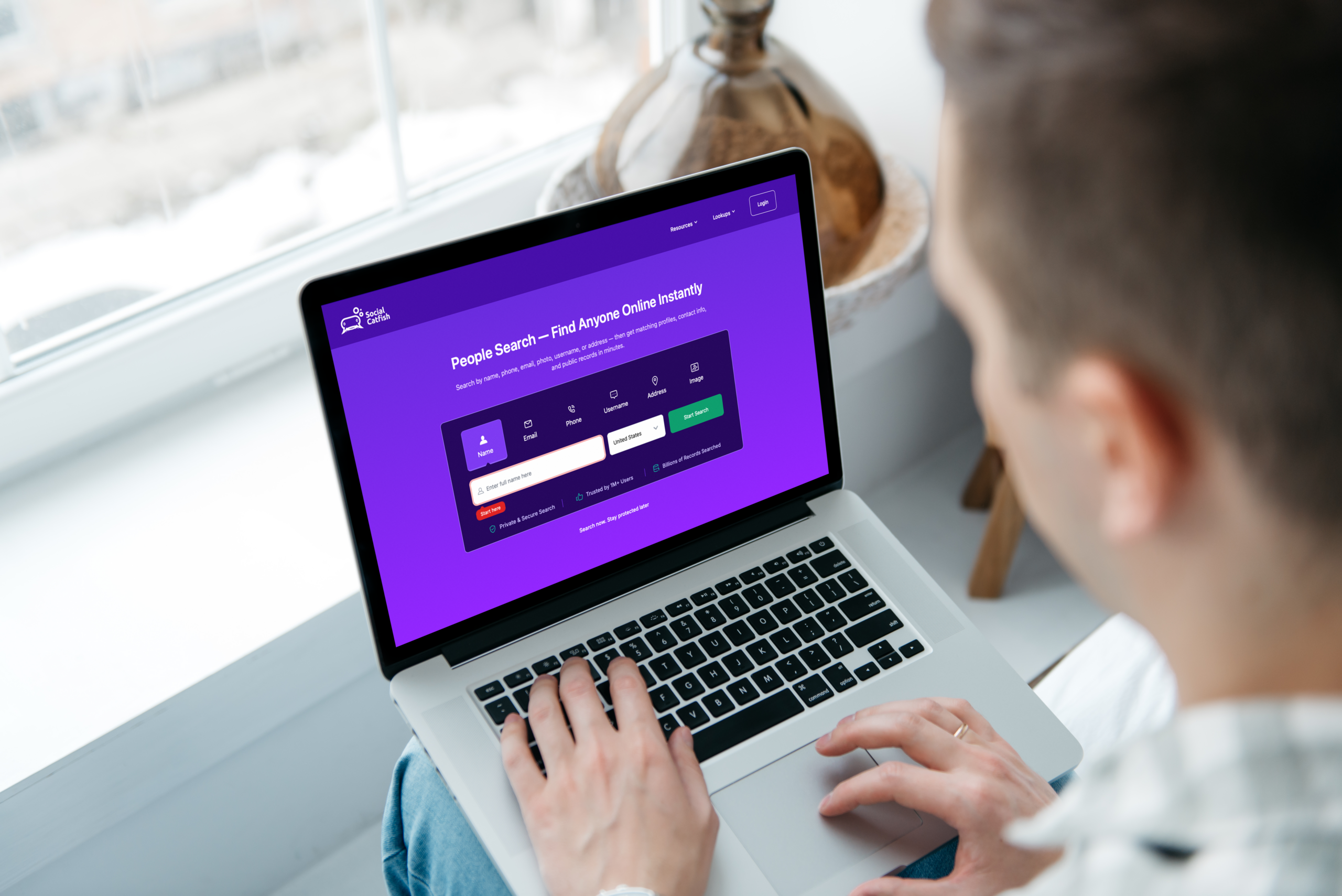
Sign up for our blog to receive the latest news about protecting your home network! Not sure what people might be able to learn about you on the internet? Do a reverse search on Social Catfish: