
 Multiple Faces Detected


 September 20th, 2024
Technology has made our lives easier in many ways. One of the most impressive advancements in technology is the use of face recognition. With the help of face recognition, we can easily unlock our phones, make payments, and even access our social media accounts. And one of the most popular platforms for face recognition is Google. In this blog post, we will guide you on how to use Google face recognition and make the most out of this amazing feature.
What is Google Face Recognition?
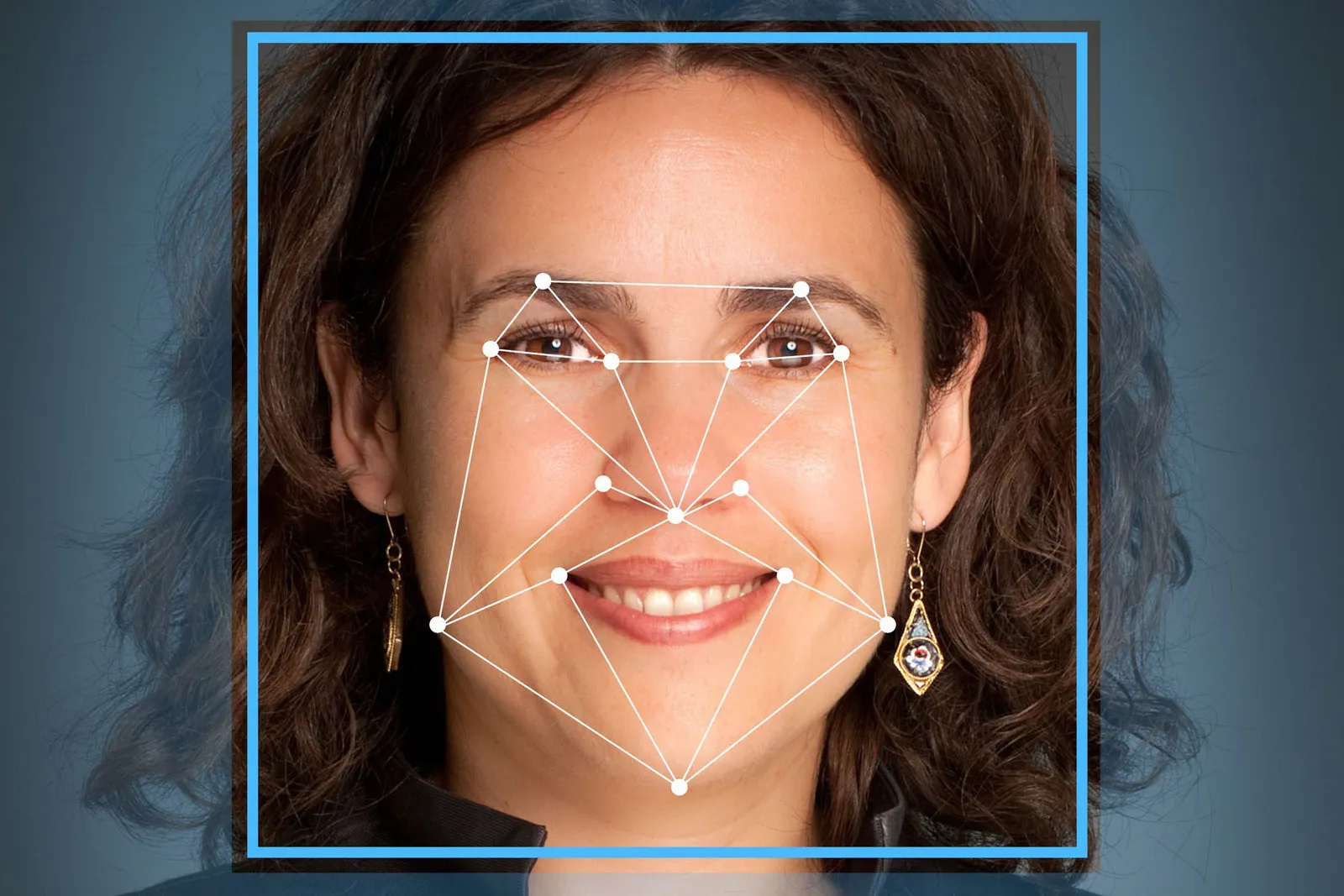
Google face recognition is a technology that uses artificial intelligence to identify and verify a person’s face. It is a part of Google’s biometric authentication system, which allows users to unlock their devices and access various services using their face as a password. This technology uses a combination of hardware and software to capture and analyze facial features, such as the distance between the eyes, nose, and mouth, to create a unique faceprint for each individual.
How to Set Up Google Face Recognition?
Setting up Google face recognition is a simple process that can be done in a few easy steps. Here’s how you can do it:
- Go to your device’s settings and select “Security.”
- Tap on “Face Recognition” and then select “Set Up.”
- Follow the on-screen instructions to scan your face. Make sure you are in a well-lit area and hold your device at eye level.
- Once the scanning is complete, you will be prompted to set a backup password in case face recognition fails.
- That’s it! Your Google face recognition is now set up and ready to use.
How to Use Google Face Recognition?
Now that you have set up Google face recognition, here’s how you can use it:
- To unlock your device, simply look at the front-facing camera and your device will automatically recognize your face and unlock.
- You can also use Google face recognition to access various apps and services, such as Google Pay, without having to enter a password.
- If you have multiple Google accounts, you can switch between them by scanning your face.
- To disable face recognition, go to your device’s settings, select “Security,” and then tap on “Face Recognition.” From there, you can turn off the feature.
Tips for Using Google Face Recognition
Here are some tips to keep in mind while using Google face recognition:
- Make sure to scan your face in different lighting conditions to improve accuracy.
- Keep your device at eye level and hold it steady while scanning your face.
- Do not use face recognition as the only method of authentication. It is always recommended to have a backup password or PIN.
- Regularly update your device’s software to ensure the latest security features are in place.
Is Google Face Recognition Safe?
Many people have concerns about the safety and privacy of using face recognition technology. However, Google has implemented strict security measures to protect user data. The faceprint created by Google face recognition is stored locally on your device and is not shared with Google or any third-party apps. Additionally, Google’s face recognition technology is constantly improving and becoming more accurate, making it difficult for anyone to bypass the security measures.
Social Catfish
It’s more important than ever to protect our personal information and secure our devices. One way to do this is by using Google Face Recognition, a feature that allows you to unlock your device using facial recognition technology. However, what happens if you fail to set up this feature or it doesn’t work properly?
This is where Social Catfish comes in. As a search specialist, Social Catfish can help you find information about someone using their name, email, phone number, or even a photo. This can be especially useful if you suspect someone has gained access to your device without your knowledge.
You can click here to get in touch with a search specialist.
Conclusion
Google face recognition is a convenient and secure way to access your device and various services. By following the steps mentioned in this blog post, you can easily set up and use this feature. Just remember to keep your device updated and follow the tips for better accuracy. With Google face recognition, you can have peace of mind knowing that your device and data are safe and easily accessible with just a glance.