

 Multiple Faces Detected


 April 3rd, 2023
This blog post will guide you on how to report fake accounts on Instagram through both PC and mobile apps. Although social media has numerous advantages, it also has its downsides. At times, you may come across a profile that looks identical to yours, but it’s not yours. This implies that someone is impersonating you, and it can be distressing. Therefore, it’s crucial to know how to report such accounts, and this article will show you how.
These hackers are great at what they do. They acquire fake, duplicate photos, write a short bio, and can sometimes fool even those in your closest circle.
If you find yourself in this predicament, don’t fret. Every platform will allow you to easily report the imposter but for this article, we’ll walk you through how to report a fake Instagram account specifically.
Based on whether you are on the web version of Instagram, or the mobile app, you’ll want to follow a slightly different approach, which we outline for you below.
How to report a fake Instagram account on their website

You can likely click around Instagram’s website on your own to find the “report” feature, but the easiest way to quickly report a fake profile is to follow these steps.
1. Head to https://help.instagram.com/contact/636276399721841
This URL will bring you to a form that will report the account of the person pretending to be you or someone else you know. Before you fill out the form, you’ll want to keep two things in mind. The first is if you are wishing to report a fake Instagram account of someone impersonating a verified account, you’ll want to report that through Instagram’s mobile app, not their website. Secondly, if you are planning to report a fake Instagram account of your friend or someone you know, it’s best to have them fill out the form directly.
2. Select the appropriate option that describes what you are reporting
Depending on what you are reporting, you’ll want to choose the best option that describes your situation. The options range from “Someone created an account for my business organization,” “Someone created an account pretending to be me or a friend,” to “Someone created an account pretending to be someone I represent (ex: my child).”
Once you select “Someone created an account pretending to be me or a friend,” you’ll be prompted to make another selection and choose, “Yes, I am the person being impersonated.” You’ll have to select this option to continue.
3. Input the required information about you or the person being impersonated
After confirming that you are the person being impersonated on Instagram, you’ll then be brought to a new page. On this page, you’ll want to input your name and email address in the first two boxes. If you are reporting a fake Instagram account for your child, you’ll still need to type your name in at the top since you are the one filing the report.
If you are reporting a fake Instagram account for someone else, you’ll want to input their name and relationship to you in the following fields. There are a few prompts listed about what to input for your relationship to the person being impersonated.
The next field you won’t want to overlook is, “The Instagram username of the person being impersonated (if applicable).” You’ll want to enter either your Instagram handle or the Instagram handle of the person being impersonated here.
4. Input the required information about the impersonator
After you complete the form with your information, or the information of the person being impersonated, you’ll then want to input information about the fake Instagram account. The biggest pieces of information you’ll want to include are the name the fake account uses in their Instagram profile, as well as the Instagram username. It’s important to note that these are two separate things.
5. Include a photo with a government ID
The next step of the complaint requires a photo. You’ll want to take a photo of yourself, your child, or your friend, holding up a form of a government-issued ID. This can include a state driver’s license, passport, birth certificate, or visa (for a full list of accepted government-issued IDs, go
here: https://help.instagram.com/271237319690904). It doesn’t matter how you take the photo, as long as you can attach it to the form on the webpage, that will work.
If you don’t have access to a government-issued ID for some reason, Instagram does allow you to hold up two other forms of ID, which can include things like a bank statement, check, credit card, paycheck stub, or utility bill.
Once you attach the photo by clicking “Choose Files,” you’ll then be able to upload your photo to the form.
6. Submit the complete report
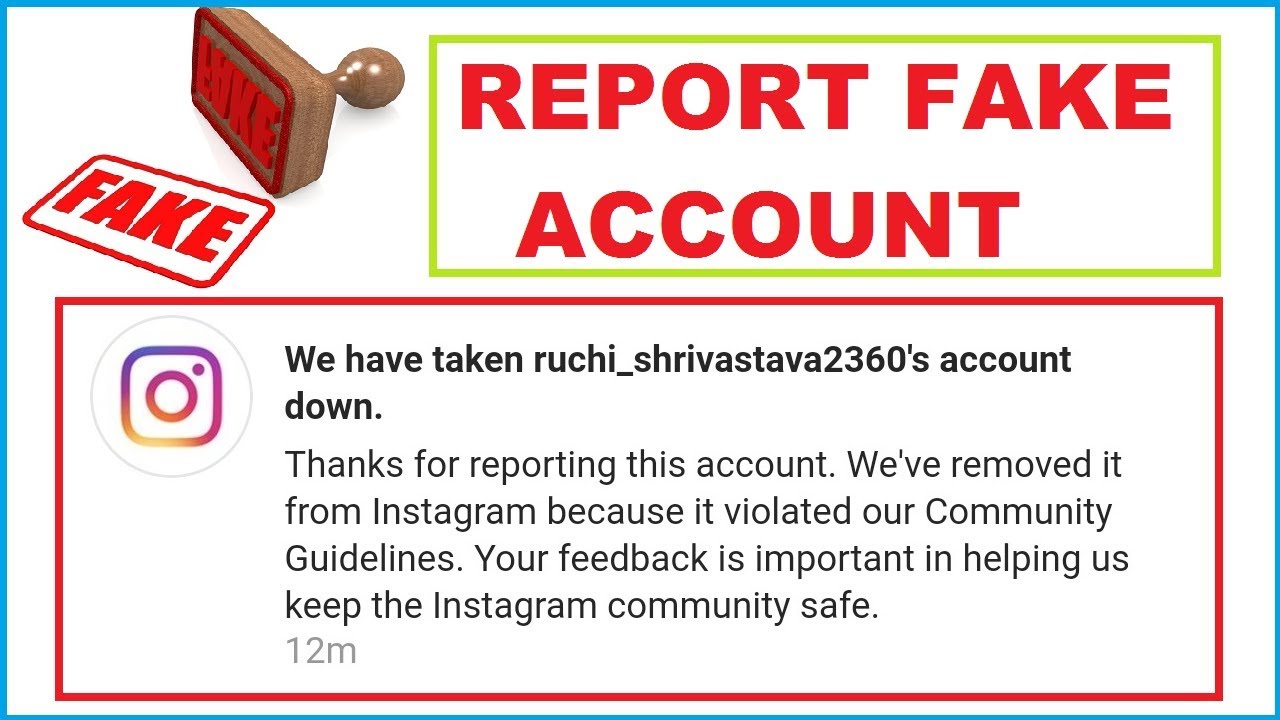
Once you submit the report, Instagram will begin reviewing it and will reach out if they need any further information. After their review, if Instagram determines that the profile you submitted is fake, they will delete and remove that account.
How to report a fake Instagram account on their mobile app

Reporting a fake Instagram account on a mobile app is the quickest way to report an imposter. It isn’t always as effective though because it doesn’t require as much proof or information. To get started on this process on your mobile Instagram app, follow the steps below.
1. Head to the impersonator’s Instagram profile
To get started you’ll want to head to the fake Instagram account. This method is often best suited for quickly reporting a fake Instagram of a verified account because “technology or a review team” is used and can easily determine that the fake account is in fact, fake.
2. Find the three dots in the corner of your screen
On the top-right-hand corner of your screen, you’ll find three dots. You’ll want to select this and then you’ll see an option that says “Report.” Select that.
3. Follow the selections to report the account
After choosing “Report,” you’ll want to choose the option on the next screen that says, “Report Account.” From there, you’ll be prompted to select why you are reporting that account. You’ll want to choose “It’s pretending to be someone else.” From there, you’ll be greeted with another menu of selections asking you to choose who the account is impersonating.
4. Submit the complete report
Just like with the webpage form, you’ll want to select “Submit Report” on the last page. This will send the completed report over to Instagram for their review. This method doesn’t require any photo proof or detailed information, so if you are reporting a fake Instagram account for yourself, or someone you know, it’s best to submit via the web form to ensure it receives a thorough review.
No one wants to be impersonated on Instagram but with these two methods, as soon as you encounter a fake Instagram account, you’ll be able to report it and take care of it.











